


How does it work?
What you need
Some steps vary between smartphone and computer, so keep both within reach.

Your smartphone

A computer

An eID card reader

your eID and PIN code

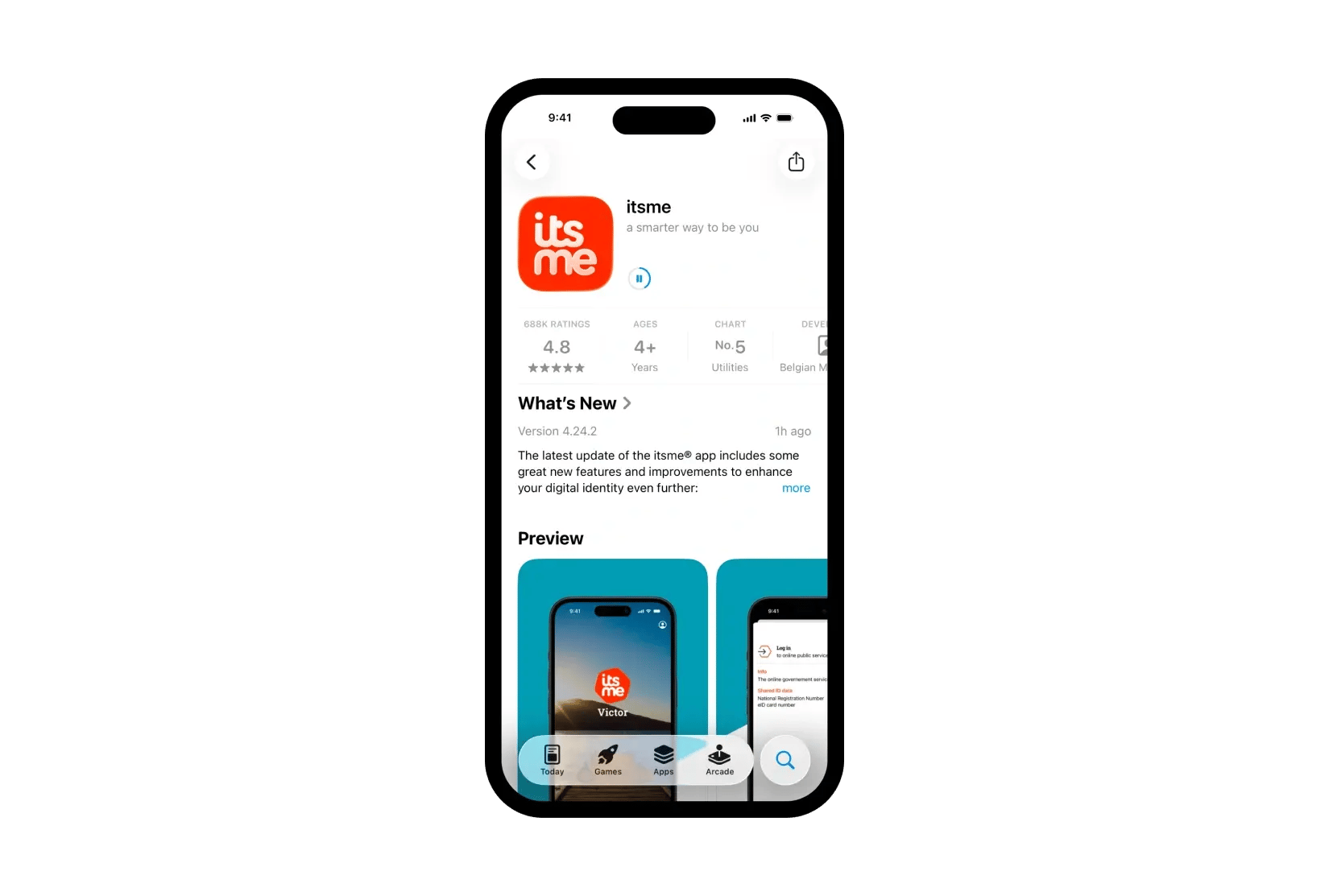
Download de itsme-app
Download the itsme app from the Google Play Store or Apple App Store.


 ENG_01_CardReaderIDR

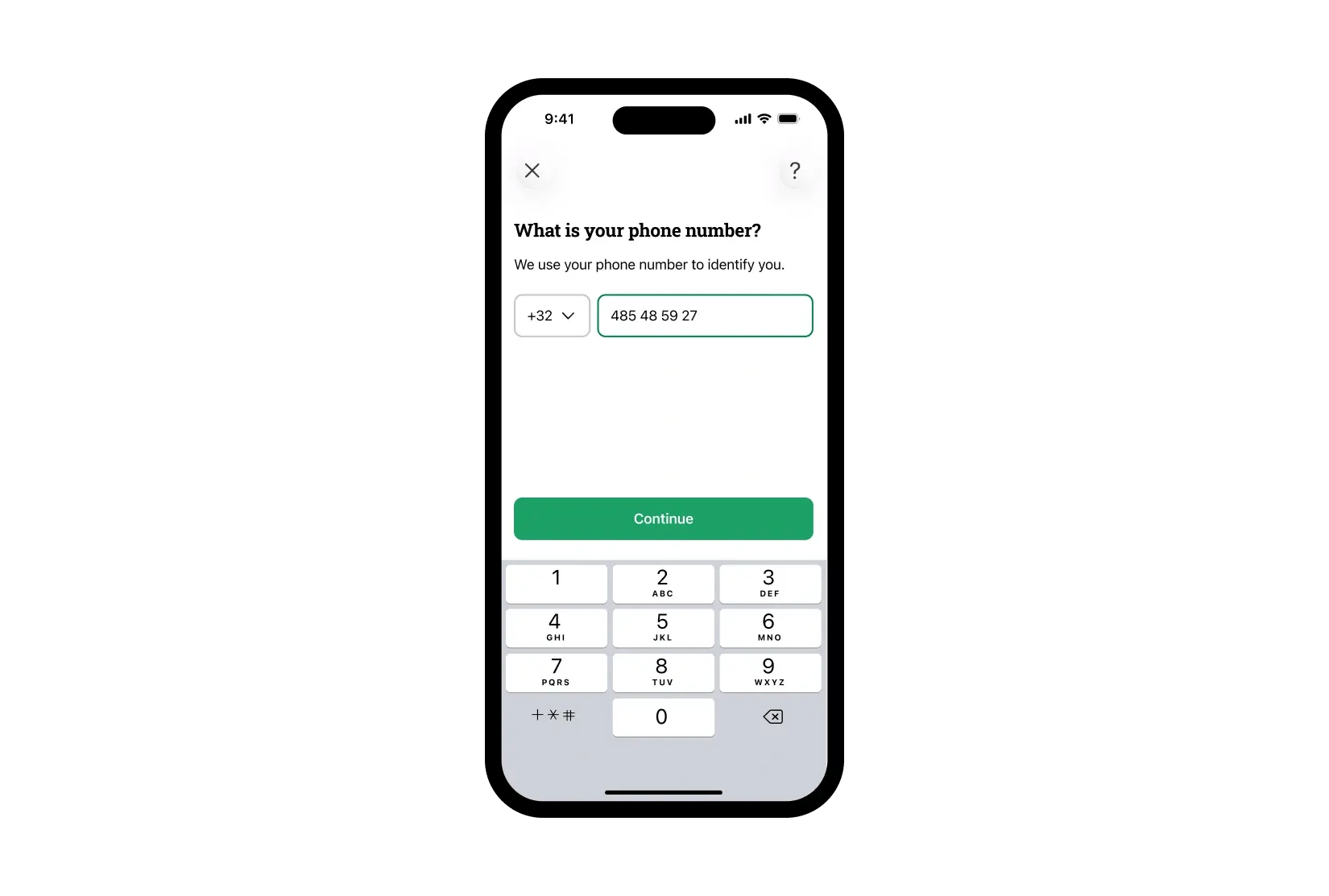
Open the itsme app and fill in your details
Read and accept the terms and conditions and the privacy policy. Then enter your phone number and email address.
 ENG_02_CardReaderIDR

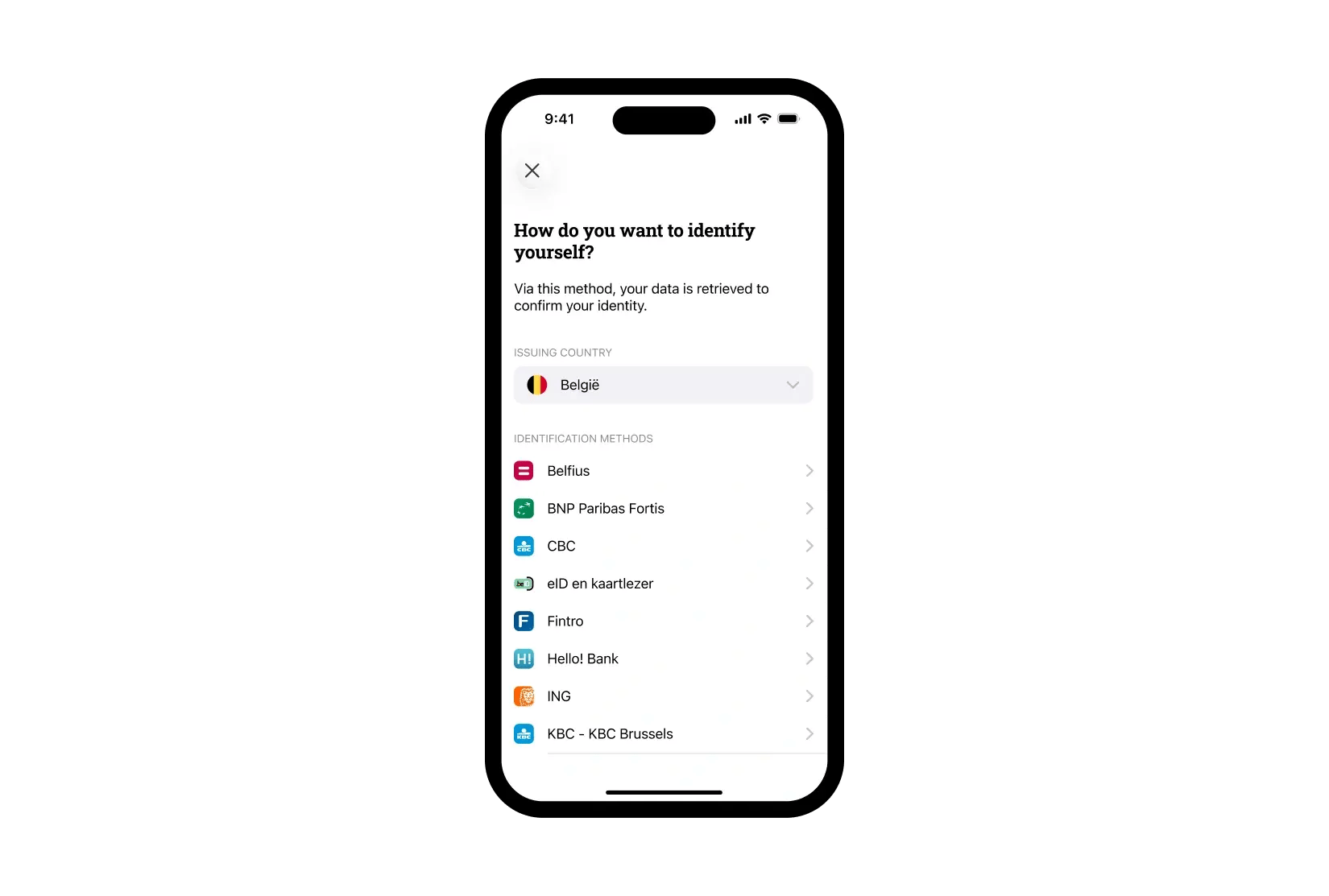
Select the correct identification method
Select eID and card reader as your identification method.
 ENG_03_CardReaderIDR

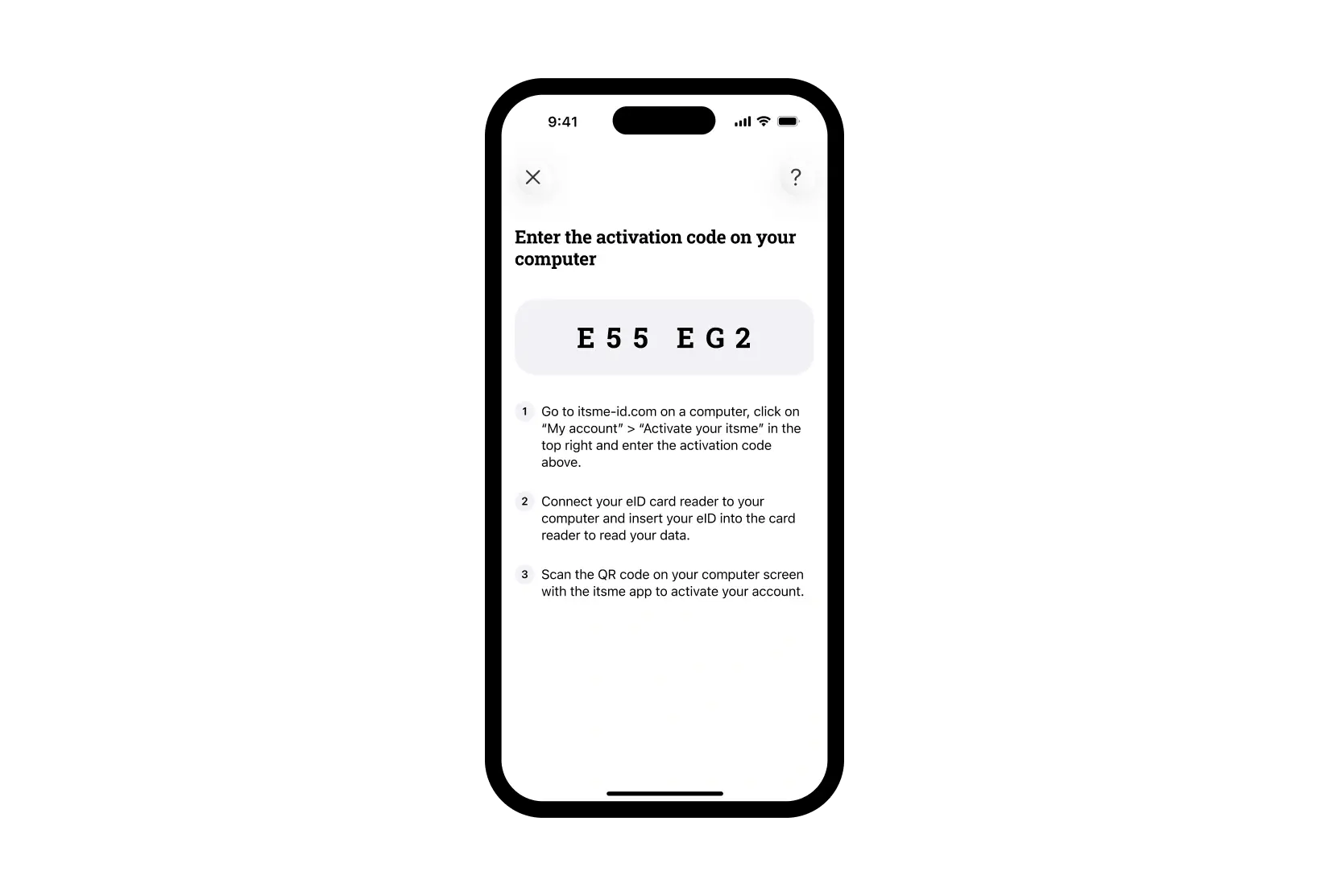
You will see an activation code appear in the itsme app
You need to enter this code on your computer. Keep the itsme app open on your smartphone meanwhile.
 ENG_04_CardReaderIDR

Enter the activation code on your computer
Go to https://my.itsme-id.com/account/activate on your computer. Then enter the activation code you see in the itsme app.
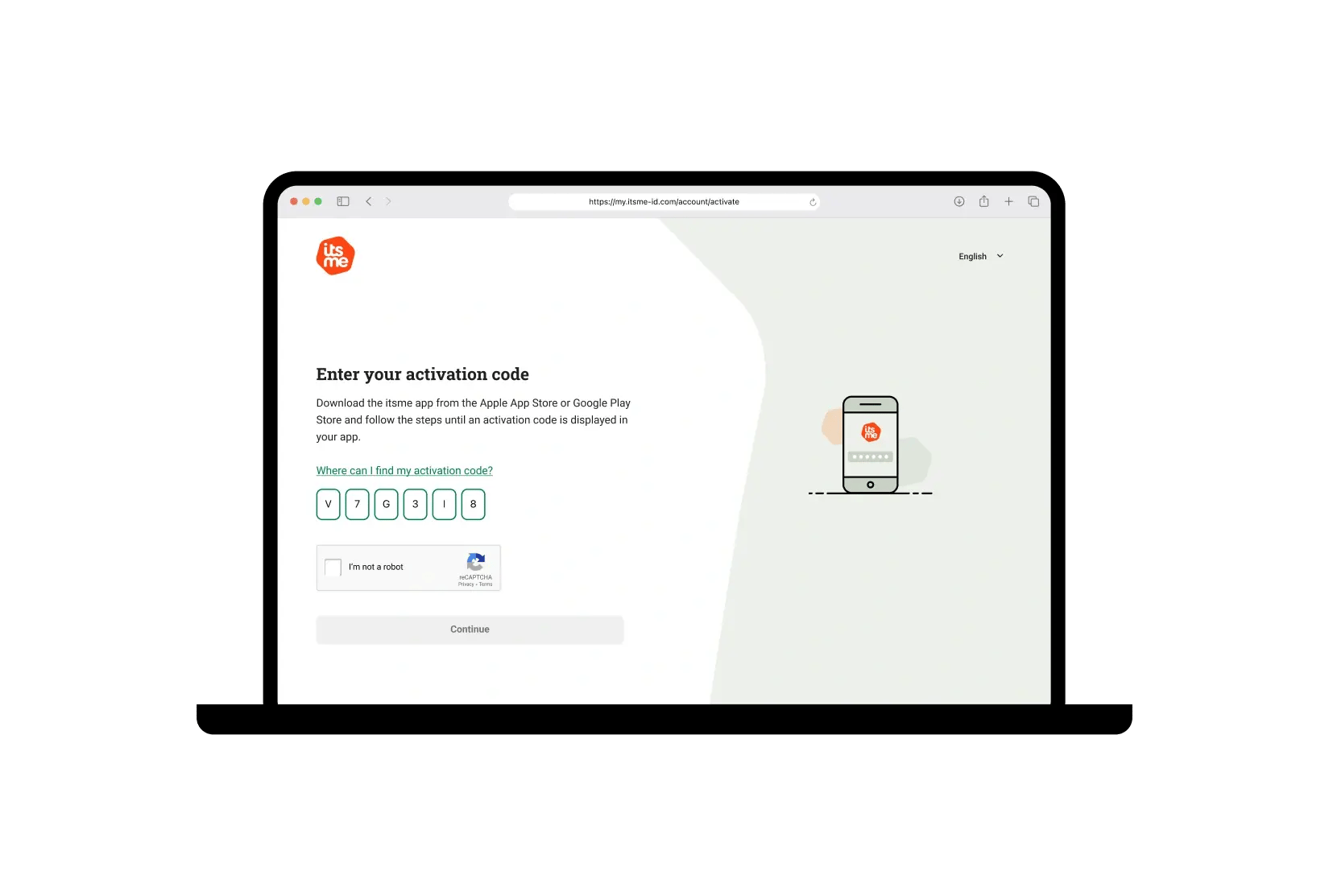 ENG_05_CardReaderIDR

Connect your eID card reader to your computer
Insert your eID card into the reader and enter your PIN. Check your details and confirm that they are correct. Read the itsme contract and sign it with your eID card.
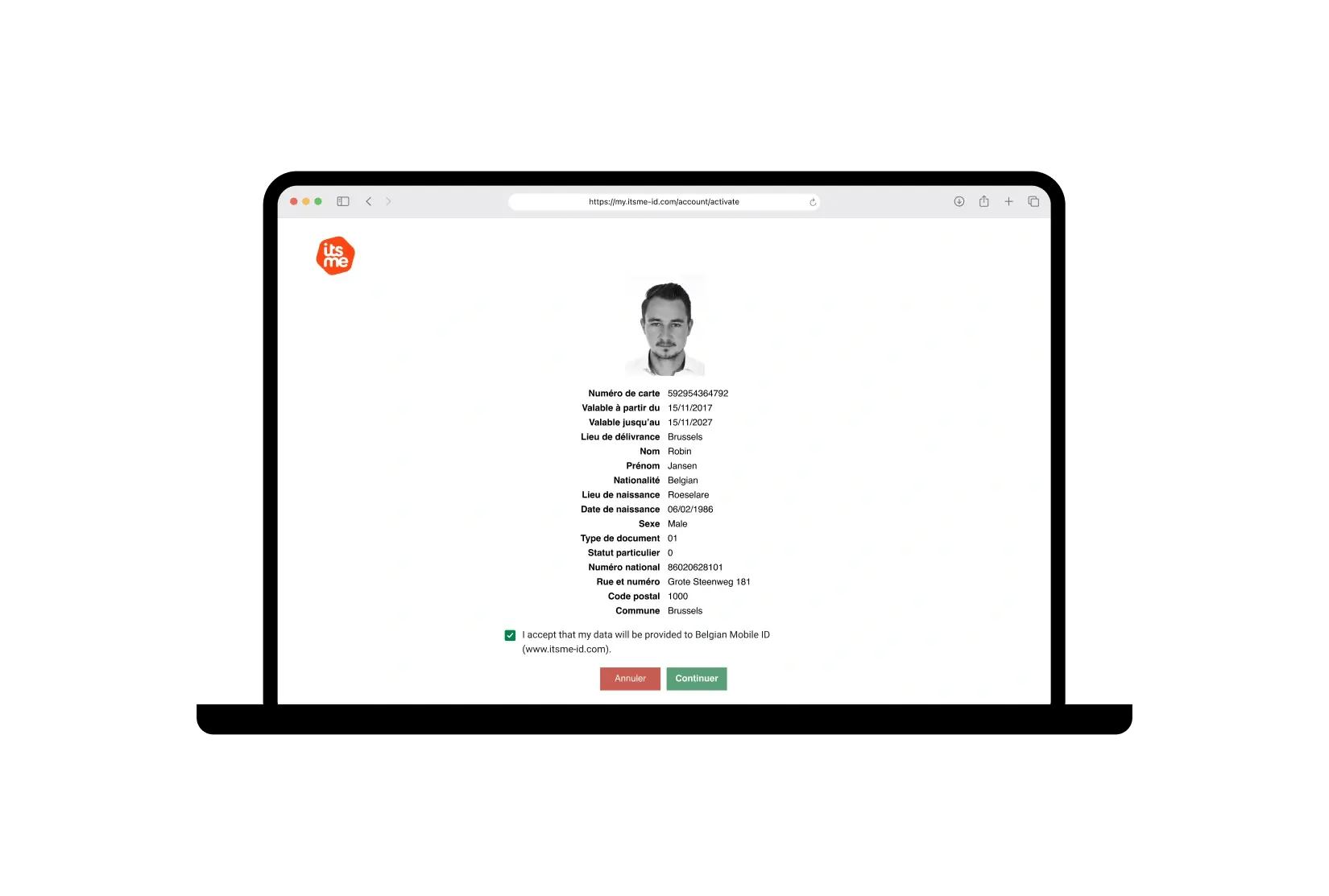 ENG_06_CardReaderIDR

Scan the itsme QR code with the itsme app
Scan the QR code on your computer screen with the itsme app to activate your account
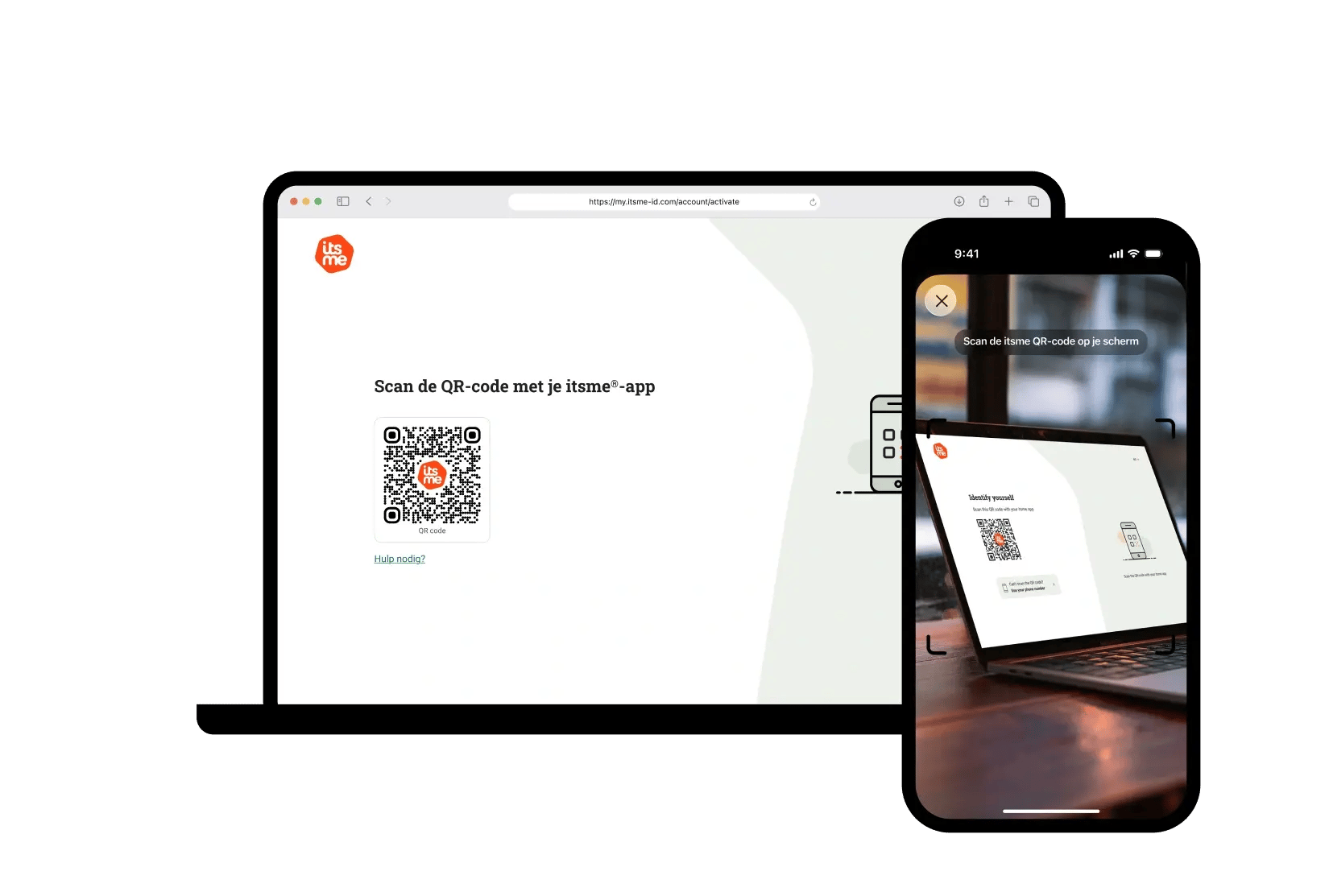 NL_07_CardReaderIDR

Receive a verification code via SMS
You will receive an SMS with your verification code from the number 8836. Enter this verification code in your itsme app.
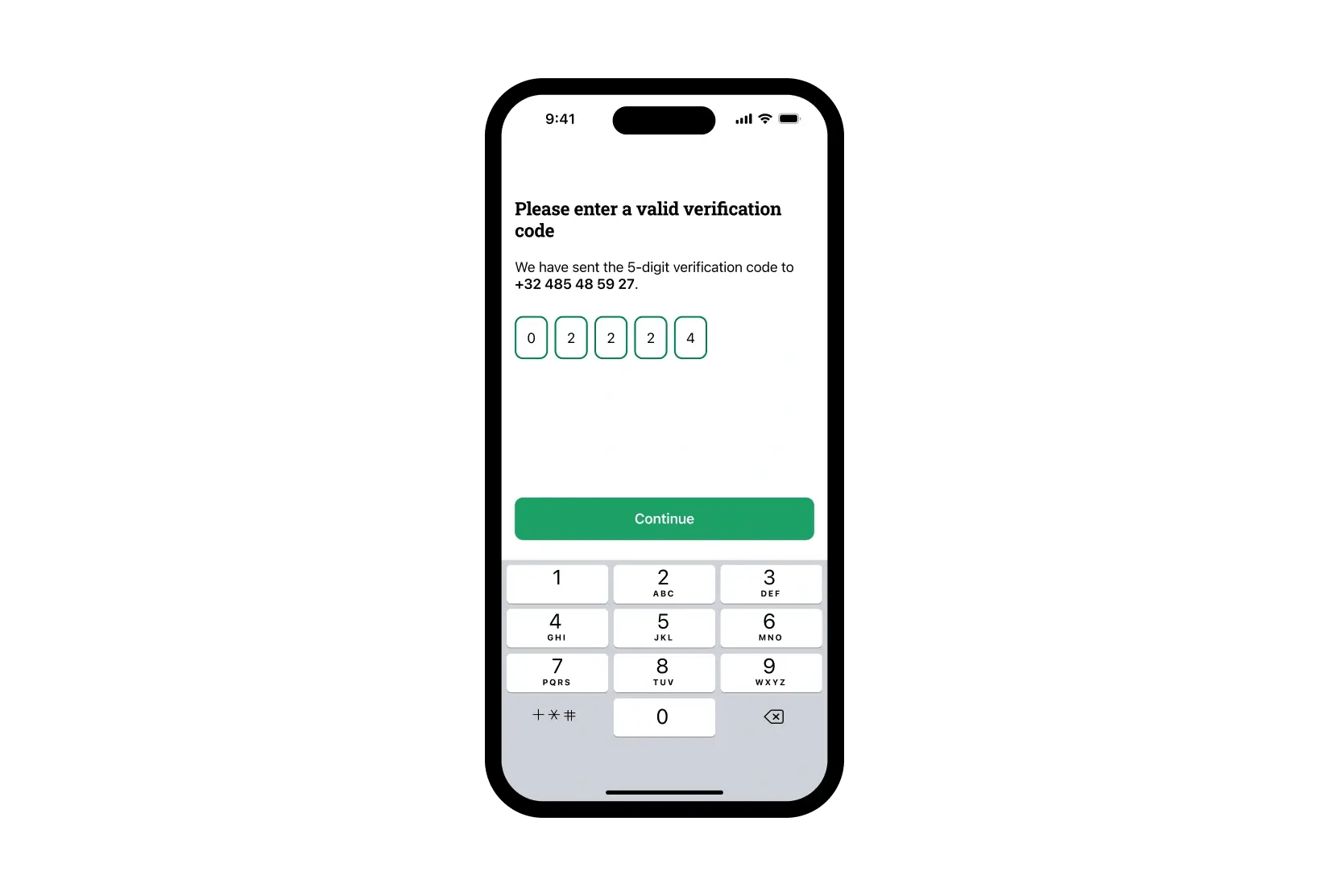 ENG_08_CardReaderIDR

Choose your itsme code
Choose your personal itsme code and activate your fingerprint or facial recognition if you wish. Set your preferences for notifications and data sharing.
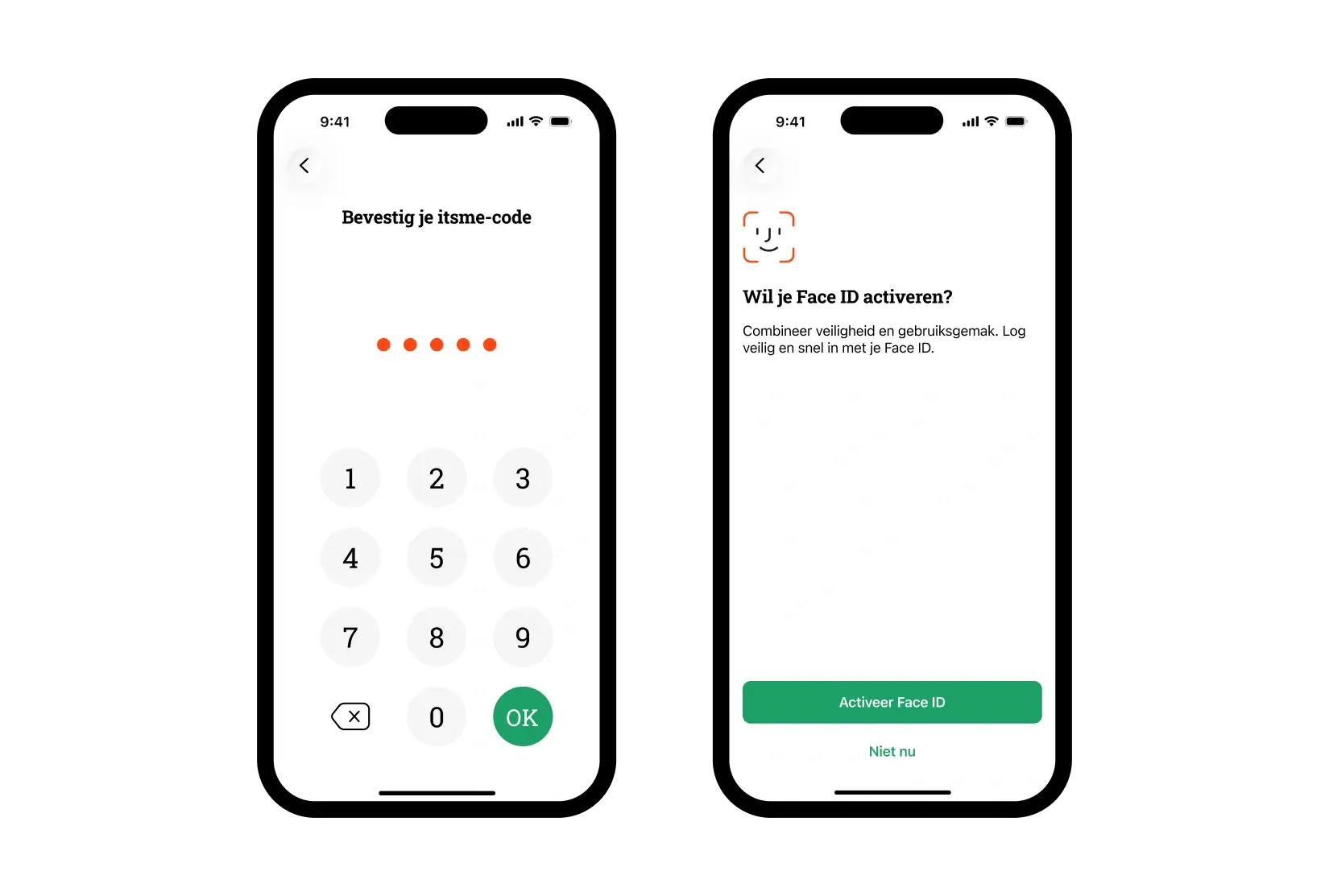 NL_09_CardReaderIDR

Your itsme is activated!
Thank you for activating your account.